Navigating the acemate Interface
Finding your way around acemate
Last updated 4 months ago
The interface is designed to keep everything important one or two clicks away: your courses, documents, workspace and AI tools.
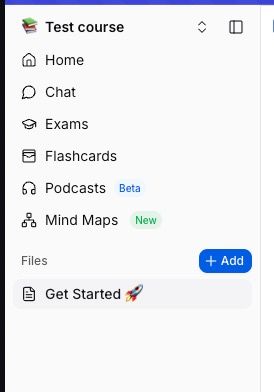
Sidebar navigation
When you are in a private course, your will typically see:
Course Selector: Switch between courses and classrooms, Create courses, Join a Classroom, Account Settings and Sign out.
Home: Overview of your course, daily quiz card, progress widgets.
Chat: Navigates you to the AI tutor screen.
Exams: Create and manage your practice tests.
Flashcards: Create and manage your flashcards
Podcasts(Beta): Listen to your lectures on the go.
Mind Maps: Visualize and track your progress.
Library: Space to manage your lecture materials
Feedback & Support: Support helpline to get instant help from the acemate bot or from the team directly.
Where to go for what?
“I want to upload lecture slides” → Library, then Uploading Documents.
“I want to study with split view and chat” → Workspace, then Introduction to the Workspace.
“I want to practice exam-style questions” → Exams, then Generating Practice Exams.
“I want flashcards” → Flashcards, then Creating Flashcard Decks.